设备工作区转换教程
本教程是基本力觉反馈这是在教程基础上进一步扩展的内容,利用空间转换的属性与方法来 Inverse3 本文将介绍如何调整设备的位置、旋转和缩放。
前言
在设置好基本的力反馈场景后,您可能会发现,即使移动、缩放或旋转“Haptic Origin”或“Haptic Controller”,力反馈也并未如预期般随之变化。 力反馈仍然对应于设备正前方的一个不可见球体,因此不受这些变换的影响。
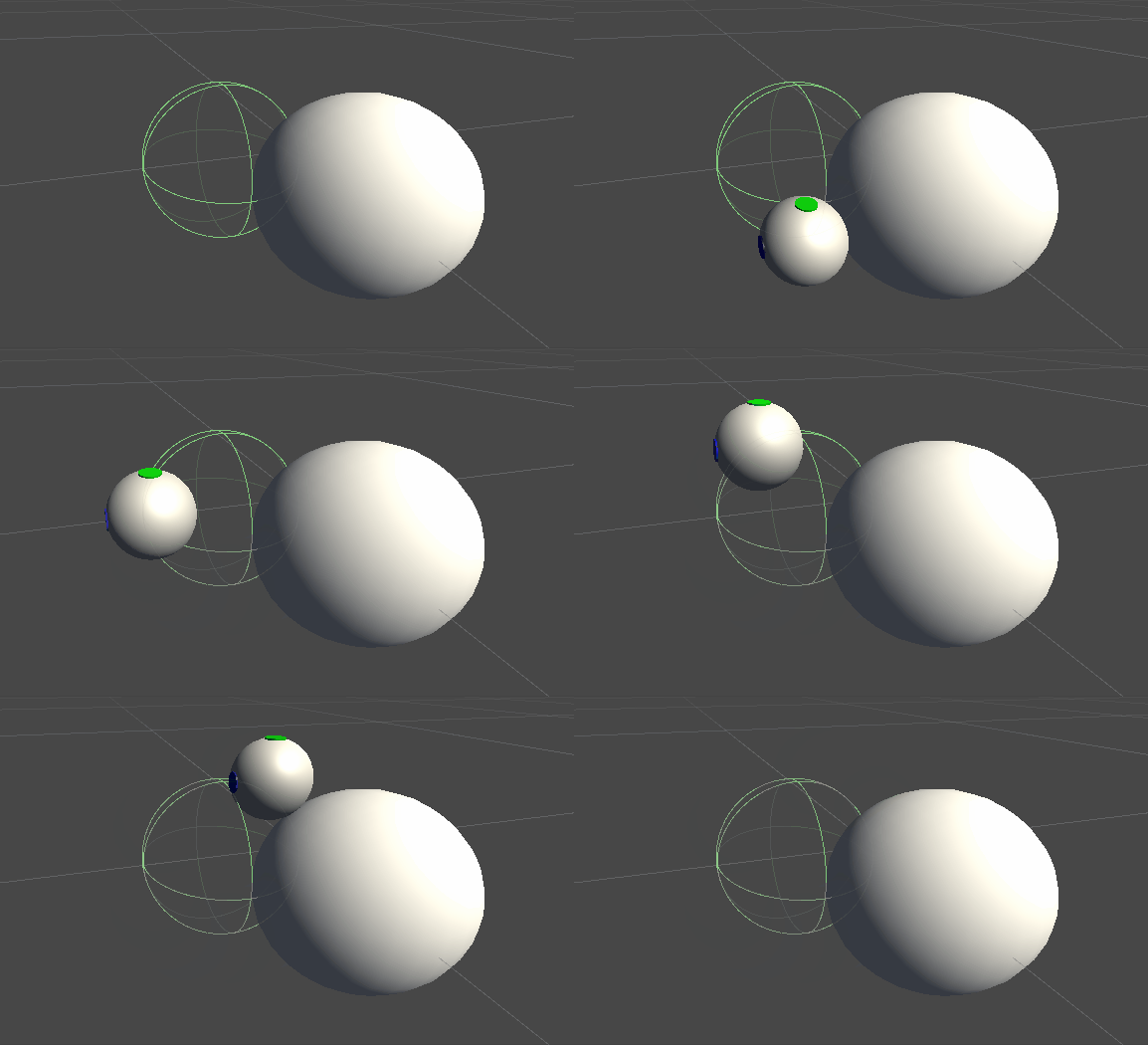
这种不一致是由于力计算使用了设备光标未经变换的实际坐标而引起的。 为了解决这个问题,可以利用Inverse3 Controller组件提供的线程安全的缓存变换矩阵,从而在计算力反馈时对世界空间坐标应用变换。
场景设置
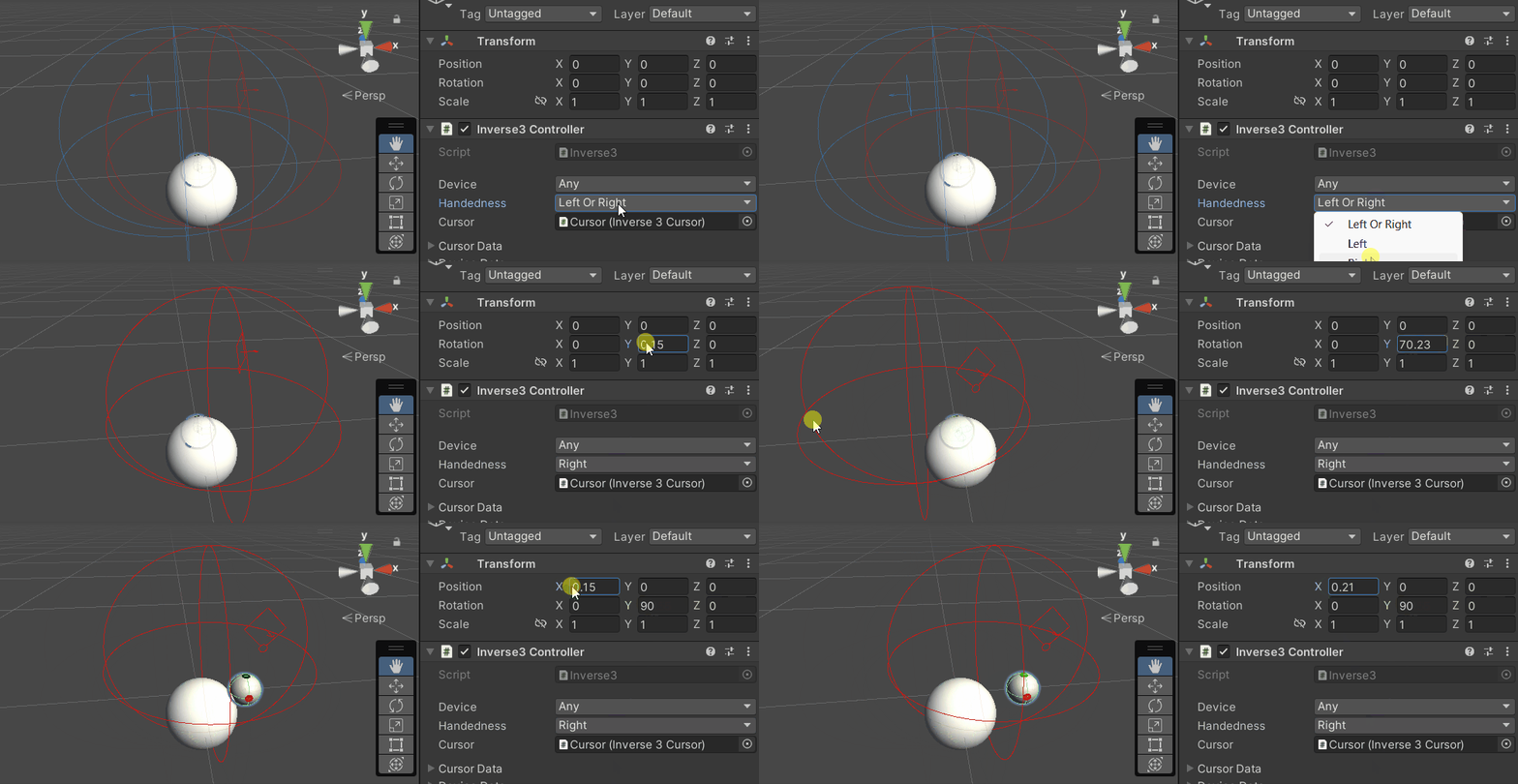
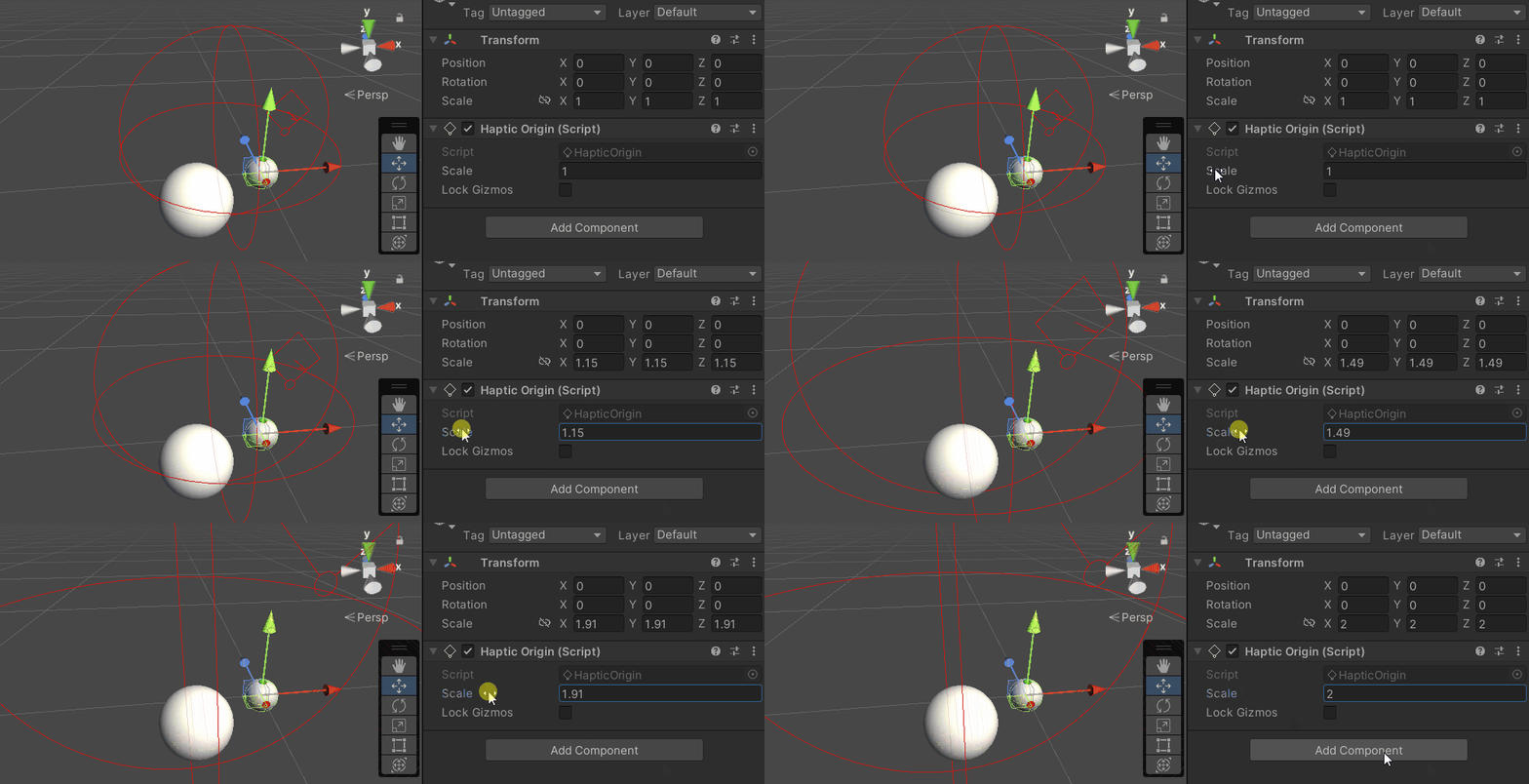
请从“基本力反馈”教程的场景开始,并确保“Inverse3 Controller”的惯用手设置与您的设备一致。 旋转“Haptic Controller”,使“Haply ”的徽标朝向摄像头;如有需要,请调整“Haptic Origin”的缩放比例,以扩大光标的移动范围或调整其位置。
力觉反馈脚本的更改内容
从基础力觉反馈教程开始 SphereForceFeedback.cs 复制脚本,OnDeviceStateChanged 请在回调函数中进行以下修改。
device.CursorLocalPositionをdevice.CursorPosition替换为。device.CursorLocalVelocityをdevice.CursorVelocity替换为。device.CursorSetLocalForce(force)をdevice.CursorSetForce(force)替换为。
private void OnDeviceStateChanged(object sender, Inverse3EventArgs args)
{
    var inverse3 = args.DeviceController;
    var force = ForceCalculation(inverse3.CursorPosition, inverse3.CursorVelocity,
        _cursorRadius, _ballPosition, _ballRadius);

    inverse3.SetCursorForce(force);
}
游戏体验
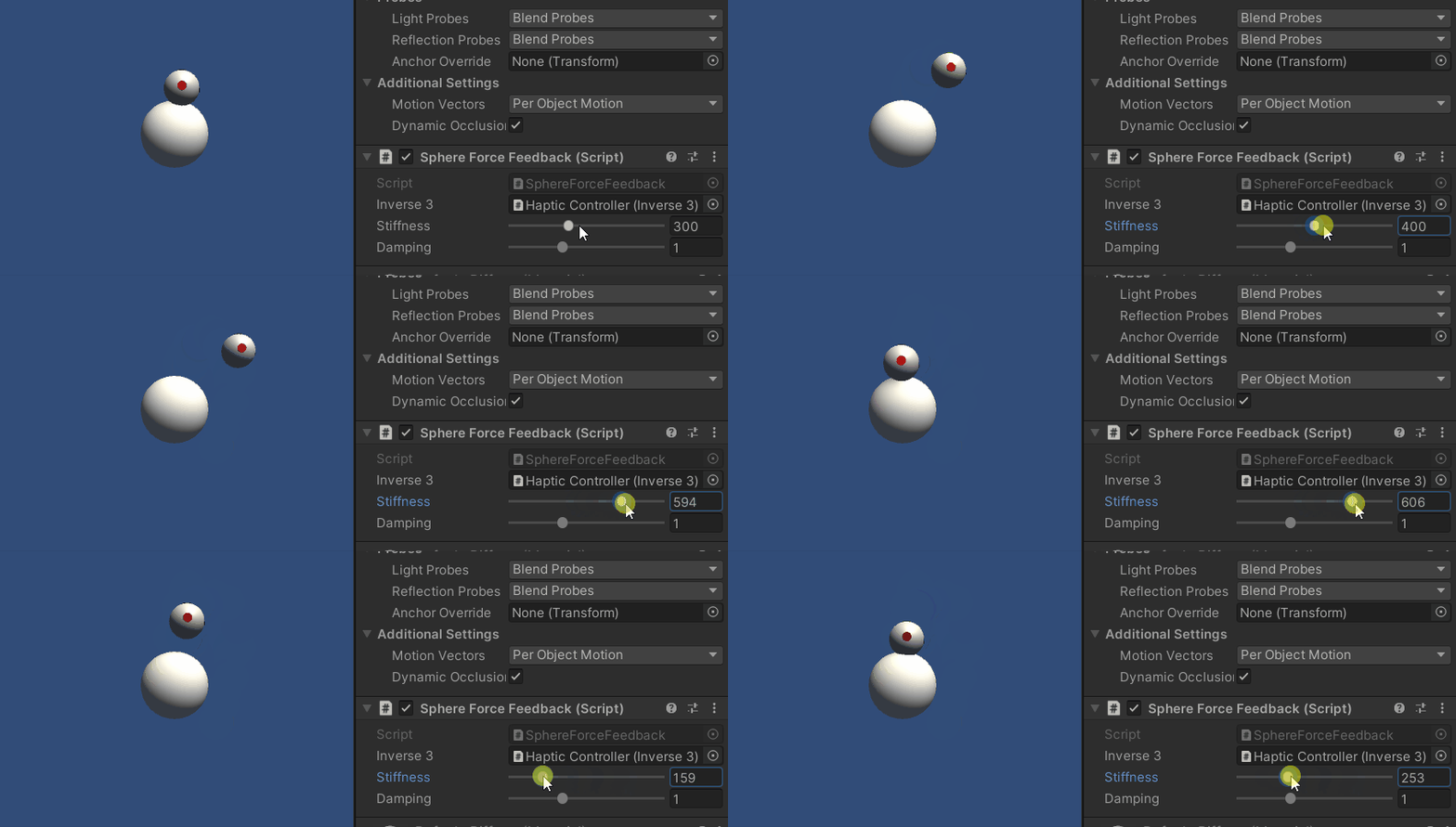
Inverse3 在按住光标的同时进入“播放模式”。请像前面的例子一样触摸球体。 您应该能够体验到反映了“触觉原点”和 “触觉控制器”所应用的变换的精确力反馈。
源文件
该示例的完整场景及相关文件可从 Unity 的“包管理器”中的“Tutorials”示例中导入。
该示例场景中包含了一些附加脚本,用于在运行时调整“Haptic Controller”和“Haptic Origin”。
SphereForceFeedback.cs
/*
 * Copyright 2024 Haply Robotics Inc. All rights reserved.
 */

using Haply.Inverse.DeviceControllers;
using Haply.Inverse.DeviceData;
using UnityEngine;

namespace Haply.Samples.Tutorials._3_DeviceSpaceTransform
{
    public class SphereForceFeedback : MonoBehaviour
    {
        // must assign in inspector
        public Inverse3Controller inverse3;

        [Range(0, 800)]
        // Stiffness of the force feedback.
        public float stiffness = 300f;

        [Range(0, 3)]
        public float damping = 1f;

        private Vector3 _ballPosition;
        private float _ballRadius;
        private float _cursorRadius;

        /// <summary>
        /// Stores the cursor and sphere transform data for access by the haptic thread.
        /// </summary>
        private void SaveSceneData()
        {
            var t = transform;
            _ballPosition = t.position;
            _ballRadius = t.lossyScale.x / 2f;

            _cursorRadius = inverse3.Cursor.Radius;
        }

        /// <summary>
        /// Saves the initial scene data cache.
        /// </summary>
        private void Awake()
        {
            inverse3 ??= FindFirstObjectByType<Inverse3Controller>();
            inverse3.Ready.AddListener((device, args) => SaveSceneData());
        }

        /// <summary>
        /// Subscribes to the DeviceStateChanged event.
        /// </summary>
        private void OnEnable()
        {
            inverse3.DeviceStateChanged += OnDeviceStateChanged;
        }

        /// <summary>
        /// Unsubscribes from the DeviceStateChanged event.
        /// </summary>
        private void OnDisable()
        {
            inverse3.DeviceStateChanged -= OnDeviceStateChanged;
            inverse3.Release();
        }

        /// <summary>
        /// Calculates the force based on the cursor's position and another sphere position.
        /// </summary>
        /// <param name="cursorPosition">The position of the cursor.</param>
        /// <param name="cursorVelocity">The velocity of the cursor.</param>
        /// <param name="cursorRadius">The radius of the cursor.</param>
        /// <param name="otherPosition">The position of the other sphere (e.g., ball).</param>
        /// <param name="otherRadius">The radius of the other sphere.</param>
        /// <returns>The calculated force vector.</returns>
        private Vector3 ForceCalculation(Vector3 cursorPosition, Vector3 cursorVelocity, float cursorRadius,
            Vector3 otherPosition, float otherRadius)
        {
            var force = Vector3.zero;

            var distanceVector = cursorPosition - otherPosition;
            var distance = distanceVector.magnitude;
            var penetration = otherRadius + cursorRadius - distance;

            if (penetration > 0)
            {
                // Normalize the distance vector to get the direction of the force
                var normal = distanceVector.normalized;

                // Calculate the force based on penetration
                force = normal * penetration * stiffness;

                // Apply damping based on the cursor velocity
                force -= cursorVelocity * damping;
            }

            return force;
        }

        /// <summary>
        /// Event handler that calculates and send the force to the device when the cursor's position changes.
        /// </summary>
        /// <param name="sender">The Inverse3 data object.</param>
        /// <param name="args">The event arguments containing the device data.</param>
        private void OnDeviceStateChanged(object sender, Inverse3EventArgs args)
        {
            var inverse3 = args.DeviceController;
            // Calculate the ball force. Using 'device.Position' instead of 'device.LocalPosition'
            // ensures the force calculation considers the device's offset and rotation in world space.
            var force = ForceCalculation(inverse3.CursorPosition, inverse3.CursorVelocity,
                _cursorRadius, _ballPosition, _ballRadius);

            // Apply the calculated force to the cursor. Using 'device.CursorSetForce' instead of
            // 'device.CursorSetLocalForce' ensures that the force vector is correctly converted
            // from world space to the device's local space.
            inverse3.SetCursorForce(force);
        }
    }
}