简单的位置控制教程
本教程将基于入门指南中介绍的概念,演示如何利用 Unity 场景中的动态游戏对象来控制Inverse3 设备的光标位置。
简介
Inverse3 该设备支持**力控制(Force Control)**和**位置控制(Position Control)**两种控制模式。
前者根据光标位置调节力,而后者则直接操控光标的位置。
本教程将 动态场景中的力反馈教程利用场景设置, FixedUpdate 在方法内部 CursorSetPosition重点在于使用该功能,使设备的光标能够跟随游戏对象的移动。
场景设置
动态场景中的力反馈教程以文中所述的场景构图开场。该构图包含 触觉装置和 MovableObject 由组件控制的 移动球 包含游戏对象。
SpherePositionControl 组件的实现
移动球 游戏对象的 球体力反馈 组件 SpherePositionControl.cs将其替换为名为……的新 C# 脚本。
SpherePositionControl 在类中定义以下属性:
public Inverse3 inverse3;
public float minSyncDistance = 0.05f;
private bool _isCursorSynchronized;
- inverse3: 这是通过检查器设置的Inverse3 设备组件的引用。
- minSyncDistance:开始光标同步所需的最小距离阈值。
- _isCursorSynchronized:这是一个标志,用于指示光标的移动是否与“移动球”同步。
同步逻辑
实现根据与“Moving Ball”的距离来启动和停止光标同步的方法:
private void StartSynchronizeCursor()
{
    var cursorPosition = inverse3.Cursor.transform.position;
    GetComponent<MovableObject>().SetTargetPosition(cursorPosition, teleport: true);
    _isCursorSynchronized = true;
}

private void StopSynchronizeCursor()
{
    _isCursorSynchronized = !inverse3.Release();
}
在此,
MovableObject.SetTargetPosition(position, teleport:true)使用 移动球将其瞬间传送到光标所在位置。
Update 和 FixedUpdate 方法
Update 在方法中,光标和 移动球 根据两者之间的距离,切换光标的同步状态:
private void Update()
{
    var distance = Vector3.Distance(inverse3.CursorPosition, transform.position);
    if (!_isCursorSynchronized && distance <= minSyncDistance)
    {
        StartSynchronizeCursor();
    }
    else if (_isCursorSynchronized && distance > minSyncDistance)
    {
        StopSynchronizeCursor();
    }
}
如果已启用同步功能, FixedUpdate在……处光标的位置 移动球更新为与以下位置一致:
private void FixedUpdate()
{
    if (_isCursorSynchronized)
    {
        inverse3.SetCursorPosition(transform.position);
    }
}
使用 FixedUpdate 方法,可以确保位置控制以稳定的帧率运行,而不会受图形渲染性能的影响。
初始化
Awake()在……中,无论左手/右手设置如何, 移动球请确保该Inverse3 设备位于可访问的位置:
private void Awake()
{
    inverse3.Ready.AddListener(device =>
    {
        GetComponent<MovableObject>().SetTargetPosition(((Inverse3)device).WorkspaceCenterLocalPosition, teleport: true);
    });
}
游戏体验
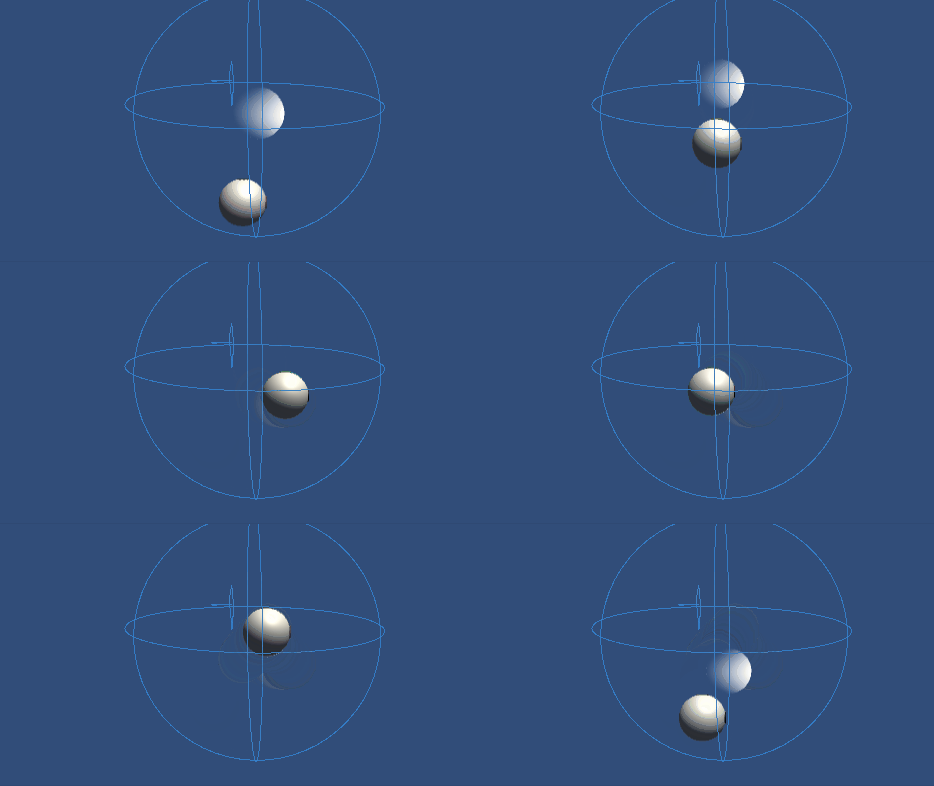
Inverse3 请将设备固定好,并确保有足够的空间。 启用“Play”模式后,将光标移至“Moving Ball”附近,Inverse3 设备便会跟随“Moving Ball”的移动。 您可以通过键盘输入来移动“Moving Ball”,从而验证光标追踪位置的能力。
源文件
本教程中的所有场景及相关文件均位于 Unity 包管理器的 教程 可在示例中找到。
该示例包含 MovableObject 其中包含一个脚本,该脚本在多个示例中用于通过键盘输入来控制游戏对象的移动。
SpherePositionControl.cs
/*
 * Copyright 2024 Haply Robotics Inc. All rights reserved.
 */

using Haply.Inverse.DeviceControllers;
using Haply.Samples.Tutorials.Utils;
using UnityEngine;

namespace Haply.Samples.Tutorials._5_SimplePositionControl
{
    /// <summary>
    /// Controls the Inverse3 cursor position based on the current position of this GameObject.
    /// When the GameObject is within a specified distance from the cursor, it initiates synchronized control,
    /// allowing the cursor to follow the GameObject's movements.
    /// </summary>
    [RequireComponent(typeof(MovableObject))]
    public class SpherePositionControl : MonoBehaviour
    {
        public Inverse3Controller inverse3;

        [Tooltip("Minimum distance required to initiate synchronized control between this GameObject and the Inverse3 cursor.")]
        [Range(0, 1)]
        public float minSyncDistance = 0.05f;

        private bool _isCursorSynchronized;

        private void Awake()
        {
            // Ensure inverse3 is set, finding it in the scene if necessary.
            inverse3 ??= FindFirstObjectByType<Inverse3Controller>();

            // When inverse3 is ready, so the handedness is defined
            inverse3.Ready.AddListener((device, args) =>
            {
                // Teleport the sphere to its workspace center to ensure it can be reached,
                // regardless of whether the device is left or right-handed. This ensures the GameObject starts in a
                // position that is accessible by the Inverse3 device.
                GetComponent<MovableObject>().SetTargetPosition(device.WorkspaceCenterLocalPosition, teleport:true);
            });
        }

        private void OnDisable()
        {
            // Ensure movement synchronization is disabled when the component is disabled.
            StopSynchronizeCursor();
            inverse3.Release();
        }

        private void Update()
        {
            if (!inverse3.IsReady)
            {
                return;
            }
            // Calculate the distance between the Inverse3 position and this object's position.
            var distance = Vector3.Distance(inverse3.CursorPosition, transform.position);

            // Enable synchronized movement if within the minimum sync distance and not already synced.
            if (!_isCursorSynchronized && distance <= minSyncDistance)
            {
                StartSynchronizeCursor();
            }
            // Disable synchronized movement if outside the minimum sync distance and currently synced.
            else if (_isCursorSynchronized && distance > minSyncDistance)
            {
                StopSynchronizeCursor();
            }
        }

        private void FixedUpdate()
        {
            if (_isCursorSynchronized)
            {
                // If in sync, set the Inverse3 cursor position to this object's position.
                inverse3.SetCursorPosition(transform.position);
            }
            else
            {
                inverse3.ProbeCursorPosition(true);
            }
        }

        private void StartSynchronizeCursor()
        {
            // Get the current cursor position.
            var cursorPosition = inverse3.Cursor.transform.position;

            // Teleport this object to the cursor position to avoid a sudden jump when position control starts.
            GetComponent<MovableObject>().SetTargetPosition(cursorPosition, teleport:true);

            // Start synchronizing the movement of this object with the cursor.
            _isCursorSynchronized = true;
        }

        private void StopSynchronizeCursor()
        {
            // Stop synchronizing the movement.
            _isCursorSynchronized = !inverse3.Release();
        }
    }
}